 dc0eab2638
Complete rewrite of the UI and significant feature additions since v1.6.1.

UX Redesign (v2.0):
- Single-view dashboard replaces 4-tab sidebar
- Settings, Prompts, Troubleshooter, Memory Manager moved to center-screen modals
- Activity log in slide-out drawer
- Setup Wizard for first-run configuration
- Prompt version tracking with update notifications
- Health indicator in stats bar

Injection Viewer (v1.6–v2.1.6):
- Per-message injection data: see exactly what memories, lorebook entries,
  and extension prompts were injected for any generation
- Context/Prompt Breakdown with per-category token counts (System, Char card,
  Lorebook, Data Bank, Examples, Chat history) via ST Prompt Itemization
- Stacked bar visualization, token hints in headers, Tips popup
- Context overflow and heavy injection warnings

Memory Management:
- Unified block editor across all 5 editing surfaces (Memory Manager,
  Consolidation, Conversion, Reformat, Data Bank browser)
- Find & Replace with highlighting across all editors
- Undo support for all edit operations
- Group chat character picker in Memory Manager

Other features:
- Tablet & phone display modes with touch-friendly controls
- Topic-tagged memory format for better vector retrieval
- Self-closing memory tag handling (GLM-4.7 compatibility)
- Protect recent messages from extraction feedback loop
- 9-point health check system with retrieve chunks and score threshold
- Shared editor factory (editor.js), pure utility library (lib.js)
- Vitest test suite: unit, snapshot, and live LLM tests
- Full documentation suite in docs/

See CHANGELOG.md for detailed per-version notes.

Co-Authored-By: Claude Opus 4.6 <noreply@anthropic.com>
6 KiB
Injection Viewer
The Injection Viewer is a sidebar that shows exactly what context was injected into the LLM's prompt for any character message — which memories, which lorebook entries, and what other extensions contributed. It's the fastest way to answer "did my character actually know about X when they wrote that?"
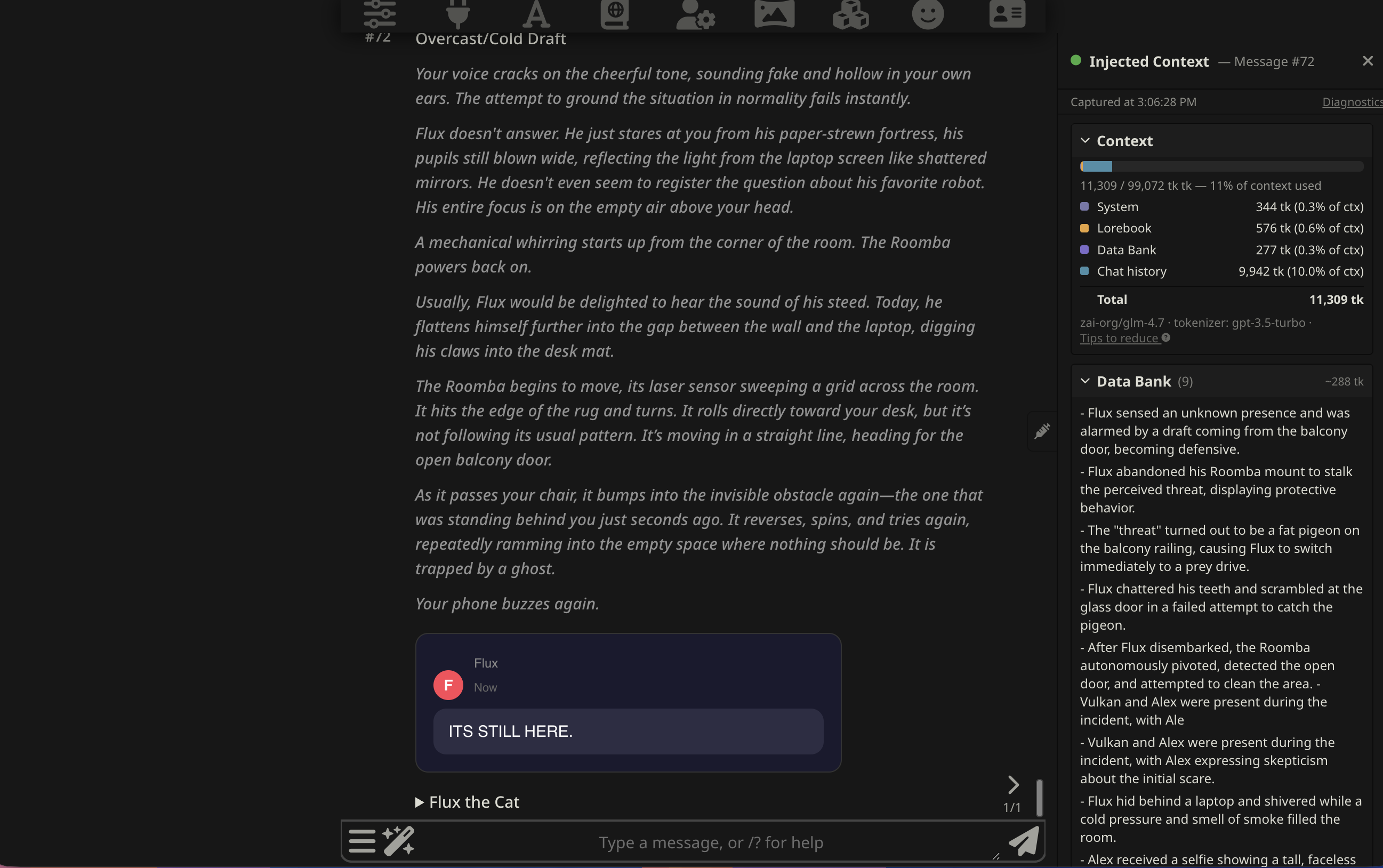
Opening the viewer
Click the syringe icon in the CharMemory panel header to show or hide the viewer sidebar. The sidebar docks to the right side of the chat area and stays open as you scroll through the conversation.
Once open, click the pen icon on any character message to load that message's injection data. The header updates to show which message you're viewing (e.g., "Message #42").

Only character messages have injection data — user messages don't trigger a generation so there's nothing to capture. Messages generated before CharMemory was installed will show a placeholder.
What the viewer shows
The viewer has four collapsible sections:
Context
The Context section appears at the top and loads automatically when you open a message's injection data. It shows a Prompt Breakdown — a per-category token breakdown of the full prompt that was sent to the LLM:
- System — system prompt tokens
- Char card — character description and personality
- Lorebook — World Info / lorebook entries that fired
- Data Bank — CharMemory's injected memories
- Examples — example dialogue
- Chat history — the actual conversation messages
When SillyTavern's Prompt Itemization data is available (current session), the numbers are exact token counts. For snapshots from previous sessions, the section shows estimated counts based on character length (~4 chars/token) with a note that the numbers are approximate.
A compact stacked bar visualizes the proportions at a glance, and a "Tips" link opens actionable guidance for reducing token usage across each category.
If tracked injections exceed the model's context window, a red health note flags the overflow. If they exceed 40% of context (leaving little room for char card and chat history), a yellow advisory appears.
Data Bank
The memory bullets that Vector Storage retrieved and injected for this generation. The header shows a count and estimated token cost (e.g., "Data Bank (6) ~120 tk"). Each bullet is listed individually — this is the direct answer to "what did the character remember when writing this message?"
If this section is empty but memories exist in the file, Vector Storage either filtered them out (score threshold too high) or didn't find a close enough semantic match. See Retrieval & Prompts for how to tune retrieval.
Lorebook Entries
Which World Info / lorebook entries fired for this generation, based on their trigger keywords matching the recent conversation. Each entry shows its name, trigger keys, estimated token cost (~N tk), and a content preview.
If an entry you expected to see isn't listed, its keywords didn't match the recent context window. This section is useful for understanding the full picture — memories and lorebook entries both contribute to what the character "knows," and they can complement or conflict with each other.
Extension Prompts
Content injected by all active extensions, keyed by injection position (e.g., 4_vectors_data_bank for Vector Storage, 2_floating_prompt for Author's Note). Each extension's entry shows its estimated token cost and injection position/depth (e.g., ~340 tk · in-chat @ depth 2). This is the unprocessed view — useful for seeing the exact <memory> block markup and chunk boundaries that the LLM received.
The health dot
The viewer header includes a colored health dot that mirrors the one in the stats bar:
| Color | Meaning |
|---|---|
| Green | All health checks passed |
| Yellow | Warnings — things work but could be improved |
| Red | Problems detected — memories may not be injecting correctly |
| Gray | No generation captured yet for this message |
Hover over the dot for a quick summary. Tap the Diagnostics link in the viewer toolbar to see the full health check results inline without leaving the chat. On tablets and phones (or when Display Mode is set to Tablet/Phone in Settings > Advanced), the viewer opens as a wide drawer above the sidebar for easier reading.
For details on what each check looks for and how to fix issues, see Troubleshooting → Health Checks.
How data is captured
Injection data is captured automatically at generation time — CharMemory takes a snapshot of all injected context the moment the character produces a response. A few things to know:
- Data persists across page refreshes — snapshots are stored in chat metadata, so they survive reloads within the same chat
- Only messages generated while CharMemory is active have data — messages from before installation show a placeholder
- Group chats: each character message captures data for that specific character's generation turn
Injection Viewer vs. Diagnostics
Both tools inspect injected context, but they serve different purposes:
| Injection Viewer | Diagnostics | |
|---|---|---|
| Scope | Any past message — inspect any generation | Latest generation only |
| Detail | Parsed sections — memories, lorebooks, prompts | Full system overview — file status, vectorization, health checks |
| Best for | "What did the character know when it wrote this?" | "Is my setup working correctly?" |
| Access | Pen icon on any character message | Wrench icon → Diagnostics |
Use the Injection Viewer to spot-check individual messages and compare what changed between generations. Use Diagnostics to verify your overall setup — file vectorized, settings correct, memories being injected at all.