 dc0eab2638
Complete rewrite of the UI and significant feature additions since v1.6.1.

UX Redesign (v2.0):
- Single-view dashboard replaces 4-tab sidebar
- Settings, Prompts, Troubleshooter, Memory Manager moved to center-screen modals
- Activity log in slide-out drawer
- Setup Wizard for first-run configuration
- Prompt version tracking with update notifications
- Health indicator in stats bar

Injection Viewer (v1.6–v2.1.6):
- Per-message injection data: see exactly what memories, lorebook entries,
  and extension prompts were injected for any generation
- Context/Prompt Breakdown with per-category token counts (System, Char card,
  Lorebook, Data Bank, Examples, Chat history) via ST Prompt Itemization
- Stacked bar visualization, token hints in headers, Tips popup
- Context overflow and heavy injection warnings

Memory Management:
- Unified block editor across all 5 editing surfaces (Memory Manager,
  Consolidation, Conversion, Reformat, Data Bank browser)
- Find & Replace with highlighting across all editors
- Undo support for all edit operations
- Group chat character picker in Memory Manager

Other features:
- Tablet & phone display modes with touch-friendly controls
- Topic-tagged memory format for better vector retrieval
- Self-closing memory tag handling (GLM-4.7 compatibility)
- Protect recent messages from extraction feedback loop
- 9-point health check system with retrieve chunks and score threshold
- Shared editor factory (editor.js), pure utility library (lib.js)
- Vitest test suite: unit, snapshot, and live LLM tests
- Full documentation suite in docs/

See CHANGELOG.md for detailed per-version notes.

Co-Authored-By: Claude Opus 4.6 <noreply@anthropic.com>
8.7 KiB
Troubleshooting
Start with the health dot in the CharMemory stats bar — it runs automated checks and tells you what's wrong. If the dot is green, your setup is working correctly. If it's yellow or red, click it to jump to Diagnostics for a check-by-check breakdown.
Health checks
The health dot runs up to 9 checks depending on what data is available. Checks 1–7 run immediately when you open a chat. Checks 8–9 run after at least one generation has been captured.
| Check | What it looks for | States |
|---|---|---|
| Files enabled | "Enable for files" is on in Vector Storage | RED if off |
| Memory file exists | A memory file is in the character's Data Bank | YELLOW if missing |
| File vectorized | Memory file has been indexed (chunk count > 0) | YELLOW if 0 chunks (resolves on next generation) |
| Chunk overlap | Data Bank overlap setting in Vector Storage | YELLOW if 0% |
| Chunk size | Data Bank chunk size vs. average memory block size | YELLOW if outside recommended range |
| Retrieve chunks | Number of chunks Vector Storage retrieves per query | YELLOW if > 5 (recommended: 2–3) |
| Score threshold | Minimum similarity score for retrieval | YELLOW if not set or too low |
| Memories injected | Memory bullets appeared in the last generation | YELLOW if 0 injected (may be normal — score threshold filtering) |
| Duplicate detection | Same bullet appears more than once in injected content | YELLOW if duplicates found |
Fixing each issue
RED — Files not enabled Open Extensions → Vector Storage → under File vectorization settings, check Enable for files.
RED — Memory file not found Run an extraction first. The memory file is created on first successful extraction — Extract Now or wait for auto-extraction to fire.
YELLOW — File not yet vectorized The file exists but hasn't been indexed yet. This is normal when a memory file was just created — Vector Storage indexes on the next generation. Just send a message and generate a response. If the check stays yellow after generating, check that your vectorization source is configured and responding. If you recently purged vectors, generate a message to trigger re-indexing.
YELLOW — No memories injected File exists and is vectorized, but 0 memories appeared in the last generation. This can be normal — it means no memories scored above the relevance threshold for the current conversation topic. If you expect memories to be injected, try lowering the score threshold to 0.2 in Vector Storage → Data Bank files row. Also check that Retrieve chunks isn't set to 0.
YELLOW — Chunk overlap is 0% With 0% overlap, a memory block landing on a chunk boundary gets split — neither half retrieves cleanly, and you may see duplicate partial bullets in injected content. 0% is a valid starting point (especially with small, topic-tagged blocks), but if you notice split blocks in the Injection Viewer, increase overlap to 10–15% in Vector Storage → Data Bank files. Purge and re-vectorize after changing.
YELLOW — Chunk size out of range Too small: memory blocks get split across chunks. Too large: unrelated blocks share one embedding and retrieval loses precision. See Retrieval & Prompts → Recommended settings for guidance.
YELLOW — Duplicates in injected content The same memory bullet is appearing multiple times in what's injected. Usually means a block is split across a chunk boundary. Increase chunk overlap and/or adjust chunk size, then purge and re-vectorize.
Common issues
"0 memories" after extraction
Check the Activity Log (click View full log in the dashboard). It shows exactly what happened — whether the LLM returned NO_NEW_MEMORIES, produced unparseable output, or hit an error. Enable Verbose in the log to see the full prompt and response.
If verbose mode shows finish=length with completion tokens used but no content, you're using a reasoning/thinking model that needs a higher Max response length — increase to 2000–3000 in Settings.
Memories extracted but character doesn't recall them Vector Storage isn't configured, or "Enable for files" is off. Check the health dot — RED means something is preventing injection. Open Retrieval & Prompts and work through the setup.
Extraction never fires automatically Check that the Auto pill in the panel is active (highlighted). Also verify the message counter is incrementing in the stats bar, and that the cooldown timer isn't blocking it.
"No unprocessed messages" on Extract Now All messages have already been extracted. Use Reset Extraction State in Settings → Reset / Clear to re-read from the beginning.
Memories contain facts already in existing memories The extraction prompt sends existing memories as reference with instructions not to repeat them. If the model keeps doing it, it's likely too small to respect the boundary. Switch to a larger model — DeepSeek V3.1 or GLM 4.7.
Memories reverse who did what Same cause — model too small for accurate comprehension. Use a larger model.
Memories too sparse from a long existing chat Expected when batch-extracting hundreds of turns at once — the LLM only sees one chunk at a time and can't judge significance across the full conversation. CharMemory works best extracting incrementally as you chat. For existing chats, try increasing Messages per LLM call to 40–50 and re-running batch extraction.
Memories too granular / play-by-play The prompt has a bullet limit and negative examples to prevent this. If it persists, increase Messages per LLM call to give the LLM more context per call — more messages means it can better judge what's significant vs. trivial.
Duplicate memories accumulating in the file Use Consolidate to merge them. To prevent recurrence, check that Purge and re-vectorize is in your workflow after major memory file changes.
Memories contain system metadata, relationship tables, or image prompts
CharMemory strips code blocks, markdown tables, <details> sections, and HTML tags before sending messages to the LLM. If metadata still leaks through, edit the AVOID section in the extraction prompt (Settings → Prompts).
Diagnostics
Click the wrench icon in the CharMemory panel header to open the Troubleshooter, then go to the Diagnostics section. Click Refresh after generating a message to capture the current state.
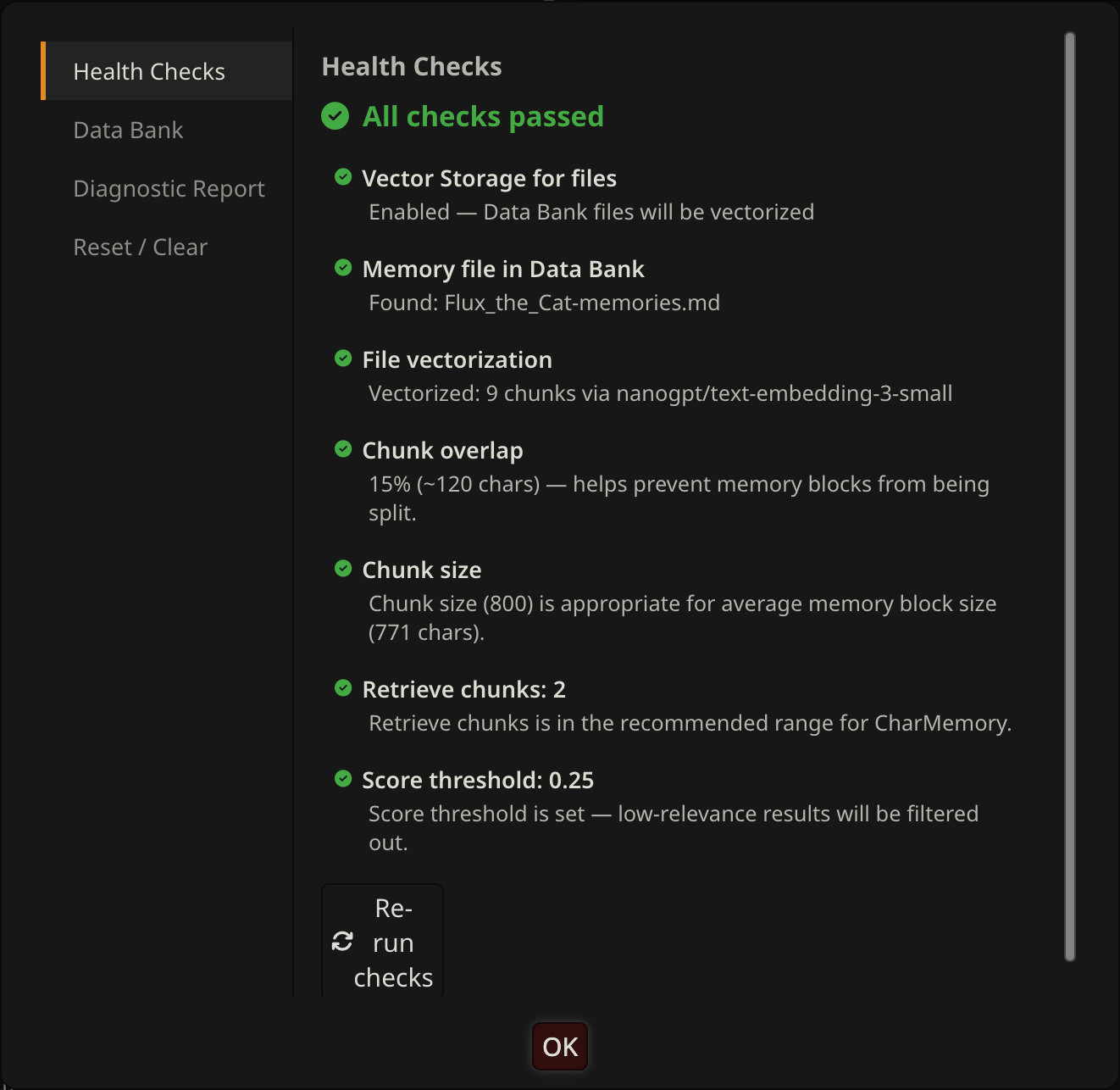
Diagnostics shows:
- Memory file — name, whether it exists, bullet and block count, vectorization status and chunk count
- Injected Memories — Last Generation — the exact bullets that were injected for the most recent generation. If a memory exists but isn't here, it wasn't semantically relevant enough to pass the score threshold, or Vector Storage settings need adjustment.
- Character Lorebooks — lorebook books bound to this character, with entry counts
- Activated Entries — Last Generation — which lorebook entries actually fired, based on keyword matches
- Extension Prompts — raw content injected by all extensions, including the full
4_vectors_data_bankentry showing everything Vector Storage sent - Injection Health — the health check card with each check's status and recommendation
Group chat caveat: Diagnostics shows info for the first group member only. To check a specific character, use View / Edit which shows all members.
Generating a diagnostic report
The Troubleshooter can generate a full diagnostic report — a text dump of your current settings, provider configuration, memory file status, and health check results. Use this when asking for help, to give others full context without manually describing your setup.
Click the wrench icon → Diagnostic Report → copy the output.
Reset tools
Before using Clear All Memories, make a backup. Use SillyTavern's backup tools to snapshot your data directory, or download the memory file from the Data Bank.
See Managing Memories → Reset and Clear for what each reset option does and when to use it. The short version:
- Reset Extraction State — re-process messages from the beginning, no memory loss
- Reset Batch Progress — re-run batch extraction from scratch, risk of duplicates if memories aren't also cleared
- Clear All Memories — deletes the memory file, cannot be undone