 dc0eab2638
Complete rewrite of the UI and significant feature additions since v1.6.1.

UX Redesign (v2.0):
- Single-view dashboard replaces 4-tab sidebar
- Settings, Prompts, Troubleshooter, Memory Manager moved to center-screen modals
- Activity log in slide-out drawer
- Setup Wizard for first-run configuration
- Prompt version tracking with update notifications
- Health indicator in stats bar

Injection Viewer (v1.6–v2.1.6):
- Per-message injection data: see exactly what memories, lorebook entries,
  and extension prompts were injected for any generation
- Context/Prompt Breakdown with per-category token counts (System, Char card,
  Lorebook, Data Bank, Examples, Chat history) via ST Prompt Itemization
- Stacked bar visualization, token hints in headers, Tips popup
- Context overflow and heavy injection warnings

Memory Management:
- Unified block editor across all 5 editing surfaces (Memory Manager,
  Consolidation, Conversion, Reformat, Data Bank browser)
- Find & Replace with highlighting across all editors
- Undo support for all edit operations
- Group chat character picker in Memory Manager

Other features:
- Tablet & phone display modes with touch-friendly controls
- Topic-tagged memory format for better vector retrieval
- Self-closing memory tag handling (GLM-4.7 compatibility)
- Protect recent messages from extraction feedback loop
- 9-point health check system with retrieve chunks and score threshold
- Shared editor factory (editor.js), pure utility library (lib.js)
- Vitest test suite: unit, snapshot, and live LLM tests
- Full documentation suite in docs/

See CHANGELOG.md for detailed per-version notes.

Co-Authored-By: Claude Opus 4.6 <noreply@anthropic.com>
4.5 KiB
Group Chats
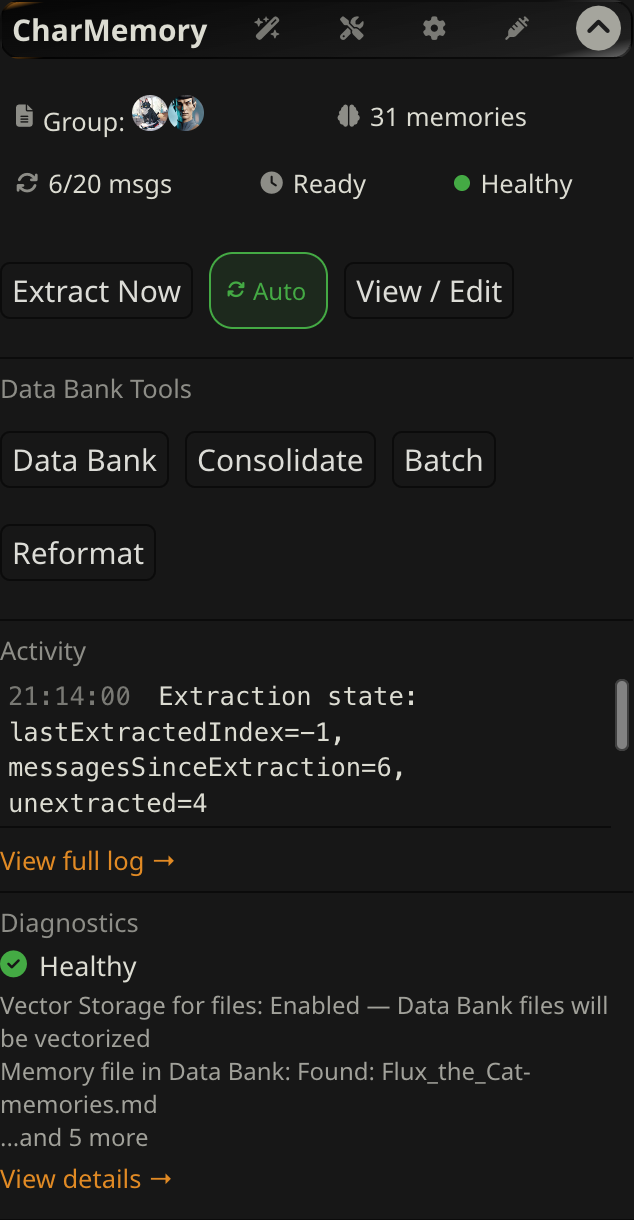
CharMemory works in group chats with no extra setup. Each group member gets their own memory file, extraction handles all members in a single pass, and the Data Bank browser lets you view and manage every member's memories from one place.
How extraction works
When extraction fires in a group chat — automatically or via Extract Now — CharMemory processes each chunk of messages once per group member. For each member it:
- Reads that character's existing memories
- Builds an extraction prompt with the character card and a participant list so the LLM knows who is speaking
- Sends the chunk to the LLM
- Appends any new memories to that character's file
Progress shows which character is being processed (e.g., "Flux (2/3)"). If the LLM call fails for one member, extraction continues with the remaining members — one failure won't abort the whole group.
The group chat uses a separate extraction prompt from 1:1 chats. It follows the same principles but adds a {{participants}} list and instructs the LLM to attribute memories to specific characters by name. You can customize it independently — changes to the 1:1 prompt aren't inherited by the group prompt, and vice versa.
Viewing and editing group memories
Click View / Edit to open the Memory Manager. In a group chat, a character picker appears first — select which member's memories to view and edit. Memory cards for the selected character are displayed with the same editing interface as in 1:1 chats (inline editing, undo, find/replace, Save/Cancel).
Newest memory blocks appear first (reverse chronological). Switch between characters using the picker at the top to review or edit each member's memories.
Data Bank browser
Click Data Bank in the panel to browse and manage memory files for all group members at once. Each member's file is listed with its memory count. You can view, edit, or delete files for any member without switching characters.
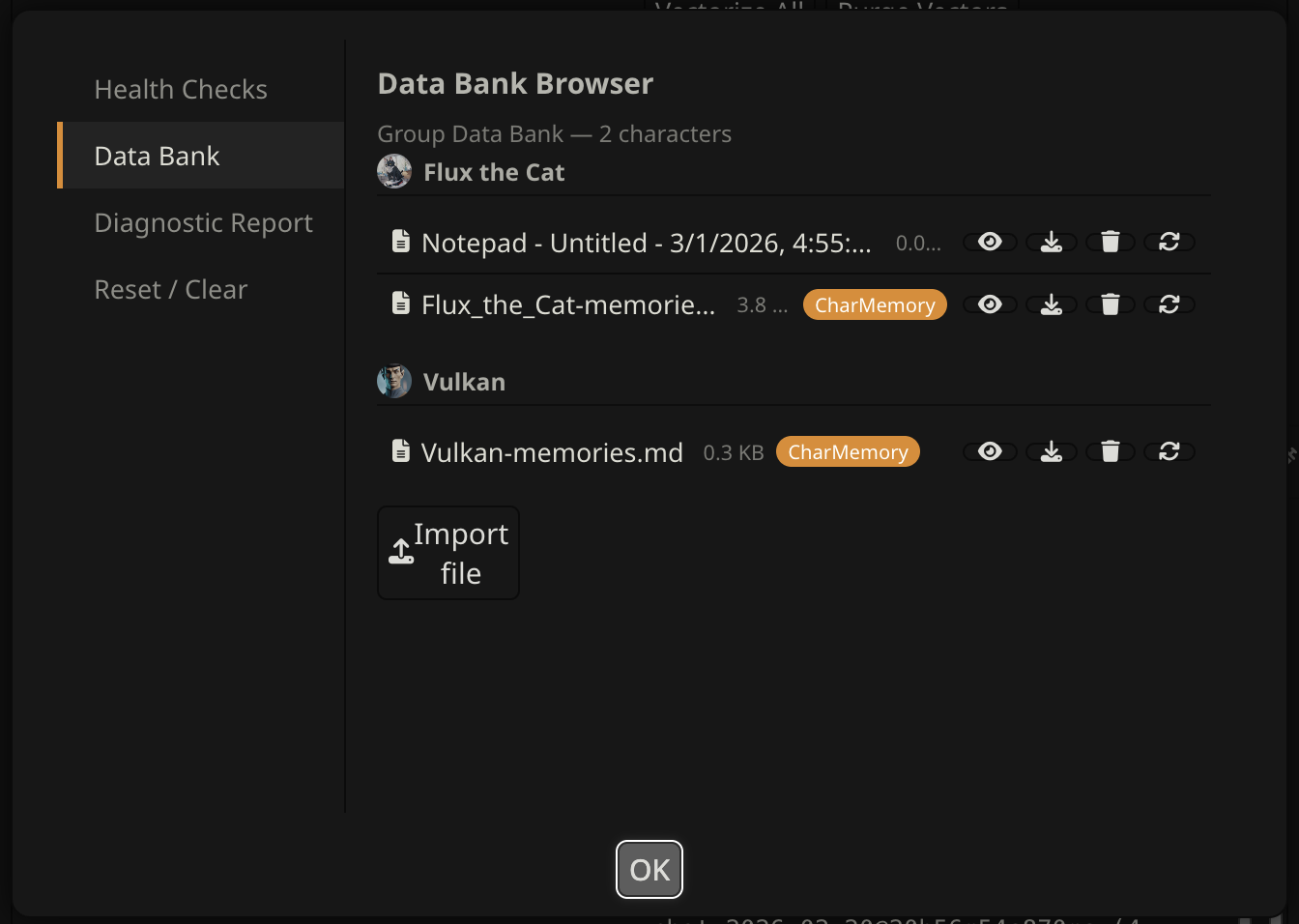
This is particularly useful for group chats because SillyTavern doesn't provide a built-in way to open the Data Bank for characters other than the active one — the CharMemory browser fills that gap.
Consolidation
The Consolidate button in a group chat shows a character picker — select which member's memories to consolidate. Consolidation works on one character at a time to keep the preview manageable. Undo restores that character's previous file.
Pin Memory
The bookmark icon on a group message routes the pinned memory to the correct character's file based on the message sender. If the sender can't be matched to a group member (e.g., a narrator message), it goes to the first member.
Reset and Clear
Both options are available in Settings (gear icon → Reset / Clear) and in the Troubleshooter (wrench icon).
Reset Extraction State in a group chat resets the extraction pointer for all group members simultaneously. This is because SillyTavern stores lastExtractedIndex in the group's shared chat metadata — not per character.
Clear All Memories deletes memory files for all group members in the current group.
How retrieval works in group chats
During generation, SillyTavern sets the active character to whichever group member is about to speak. Vector Storage retrieves memories from that character's Data Bank and injects them into the prompt. Each character gets their own memories when it's their turn — Flux gets Flux's memories, Alex gets Alex's. This is why it is necessary to have a specific extraction prompt for group chats.
Re-vectorization caveat: If you edit a character's memory file, you need to re-vectorize it to update the search index. SillyTavern's Vector Storage re-vectorizes on the active character — so you need to switch to each group member individually to trigger re-vectorization for their file. See Retrieval & Prompts → Purge and re-vectorize for the steps.
Diagnostics caveat: After generation finishes, SillyTavern resets the active character. If you open Diagnostics between generations, the "Injected Memories" section may appear empty — there's no character context at that moment. This doesn't mean memories weren't injected, just that the snapshot was taken outside a generation turn. Use the Injection Viewer on a specific message instead.