 6daa541e77
## Summary

Comprehensive remediation of 146 documentation files to align with Zed's
documentation conventions and brand voice guidelines.

## Changes

### YAML Frontmatter
- Added `title` and `description` frontmatter to all docs missing it

### Settings UI Pattern
- Updated 48+ files to show Settings Editor before JSON examples
- Pattern: `Configure X in Settings ({#kb zed::OpenSettings}), or add to
your settings file:`
- Added `([how to edit](./configuring-zed.md#settings-files))` links for
JSON-only settings

### Brand Voice Fixes
- Removed exclamation points (command-palette, key-bindings, repl,
privacy-and-security, etc.)
- Simplified em dash chains to parentheticals (environment,
troubleshooting, agent-panel, etc.)
- Fixed marketing language (yarn.md intro, development/linux.md)

### Terminology Alignment
- `settings UI` -> `Settings Editor`
- `sidebar` -> specific panel names (Project Panel, Collab Panel)
- `directory` -> `folder` in non-technical contexts
- `workspace` -> `project` in non-LSP contexts
- `Command Palette` -> `command palette` (lowercase)

### Callout Standardization
- Converted various callout formats to standard `> **Note:**` pattern

## Related

Depends on conventions established in #49176.

Release Notes:

- N/A
2.3 KiB
| title | description |
|---|---|
| Tab Switcher | The Tab Switcher provides a quick way to navigate between open tabs in Zed. It displays a list of your open tabs sorted by recent usage, making it easy to ju... |
Tab Switcher
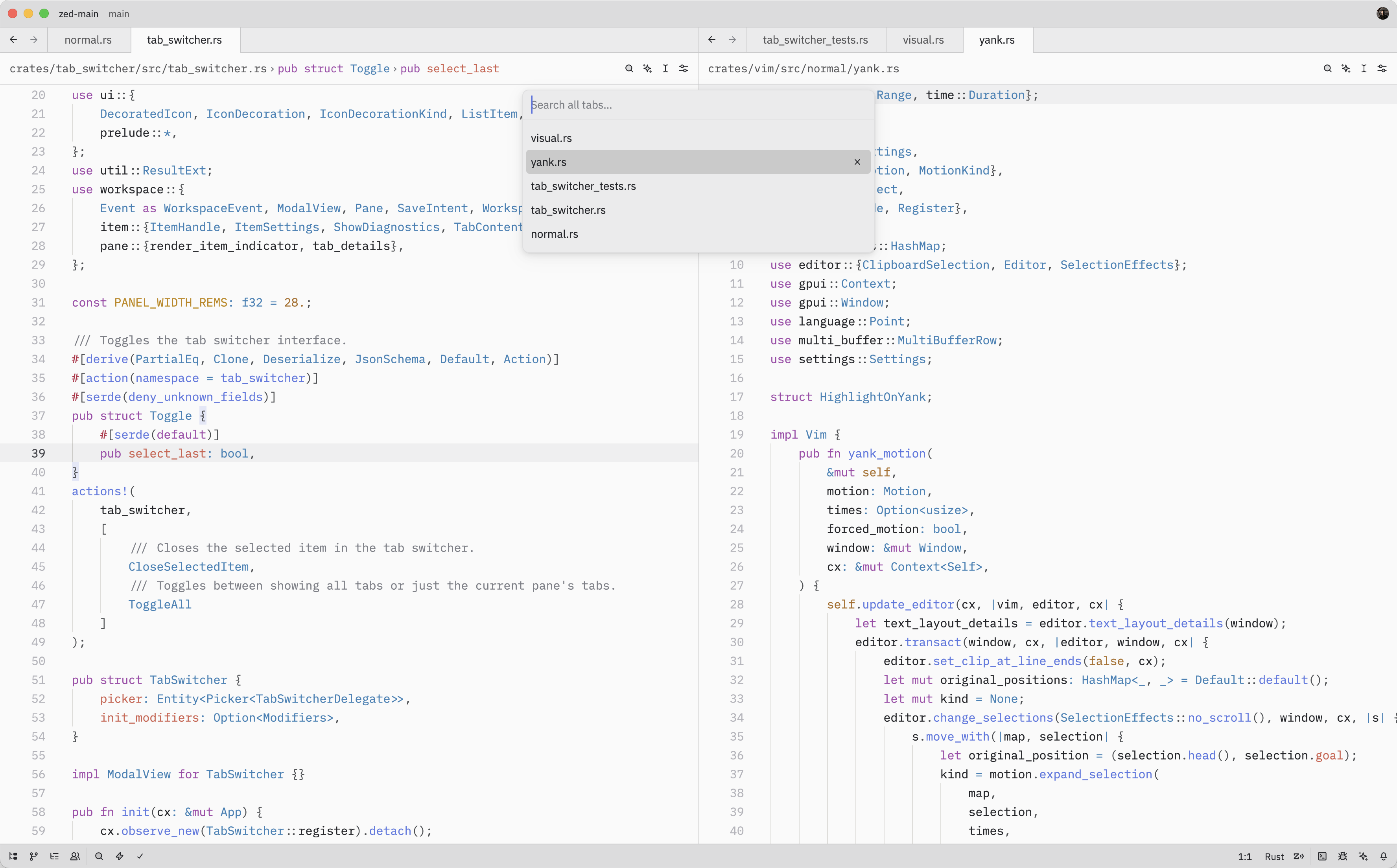
The Tab Switcher provides a quick way to navigate between open tabs in Zed. It displays a list of your open tabs sorted by recent usage, making it easy to jump back to whatever you were just working on.
Quick Switching
When the Tab Switcher is opened using {#kb tab_switcher::Toggle}, instead of running the {#action tab_switcher::Toggle} from the command palette, it'll stay active as long as the ctrl key is held down.
While holding down ctrl, each subsequent tab press cycles to the next item (shift to cycle backwards) and, when ctrl is released, the selected item is confirmed and the switcher is closed.
Opening the Tab Switcher
The Tab Switcher can also be opened with either {#action tab_switcher::Toggle} ({#kb tab_switcher::Toggle}) or {#action tab_switcher::ToggleAll}.
While the Tab Switcher is open, you can:
- Press {#kb menu::SelectNext} to move to the next tab in the list
- Press {#kb menu::SelectPrevious} to move to the previous tab
- Press enter to confirm the selected tab and close the switcher
- Press escape to close the switcher and return to the original tab from which the switcher was opened
- Press {#kb tab_switcher::CloseSelectedItem} to close the currently selected tab
As you navigate through the list, Zed will update the pane's active item to match the selected tab.
Action Reference
| Action | Description |
|---|---|
| {#action tab_switcher::Toggle} | Open the Tab Switcher for the current pane |
| {#action tab_switcher::ToggleAll} | Open the Tab Switcher showing tabs from all panes |
| {#action tab_switcher::CloseSelectedItem} | Close the selected tab in the Tab Switcher |