 63c067bf34
- Update images to use CDN links
- Add Coding Plan quick setup instructions
- Add settings.json modelProviders configuration guide
- Add direct configuration via Qwen Code conversation guide
- Improve formatting and structure
7.1 KiB
Authentication
Qwen Code supports two authentication methods. Pick the one that matches how you want to run the CLI:
- Qwen OAuth (recommended): sign in with your
qwen.aiaccount in a browser. - OpenAI-compatible API: use an API key (OpenAI or any OpenAI-compatible provider / endpoint).
Option 1: Qwen OAuth (recommended & free) 👍
Use this if you want the simplest setup and you're using Qwen models.
- How it works: on first start, Qwen Code opens a browser login page. After you finish, credentials are cached locally so you usually won't need to log in again.
- Requirements: a
qwen.aiaccount + internet access (at least for the first login). - Benefits: no API key management, automatic credential refresh.
- Cost & quota: free, with a quota of 60 requests/minute and 1,000 requests/day.
Start the CLI and follow the browser flow:
qwen
Option 2: OpenAI-compatible API (API key)
Use this if you want to use OpenAI models or any provider that exposes an OpenAI-compatible API (e.g. OpenAI, Alibaba Cloud Bailian, Azure OpenAI, OpenRouter, ModelScope, or a self-hosted compatible endpoint).
Recommended: Coding Plan (subscription-based) 🚀
Use this if you want predictable costs with higher usage quotas for the qwen3-coder-plus model.
Important
Coding Plan is only available for users in China mainland (Beijing region).
- How it works: Subscribe to the Coding Plan with a fixed monthly fee, then configure Qwen Code to use the dedicated endpoint and your subscription API key.
- Requirements: Obtain an active Coding Plan subscription from Alibaba Cloud Bailian.
- Benefits: Higher usage quotas, predictable monthly costs, access to the latest qwen3-coder-plus model.
- Cost & quota: View Alibaba Cloud Bailian Coding Plan documentation.
Coding Plan Quick Setup
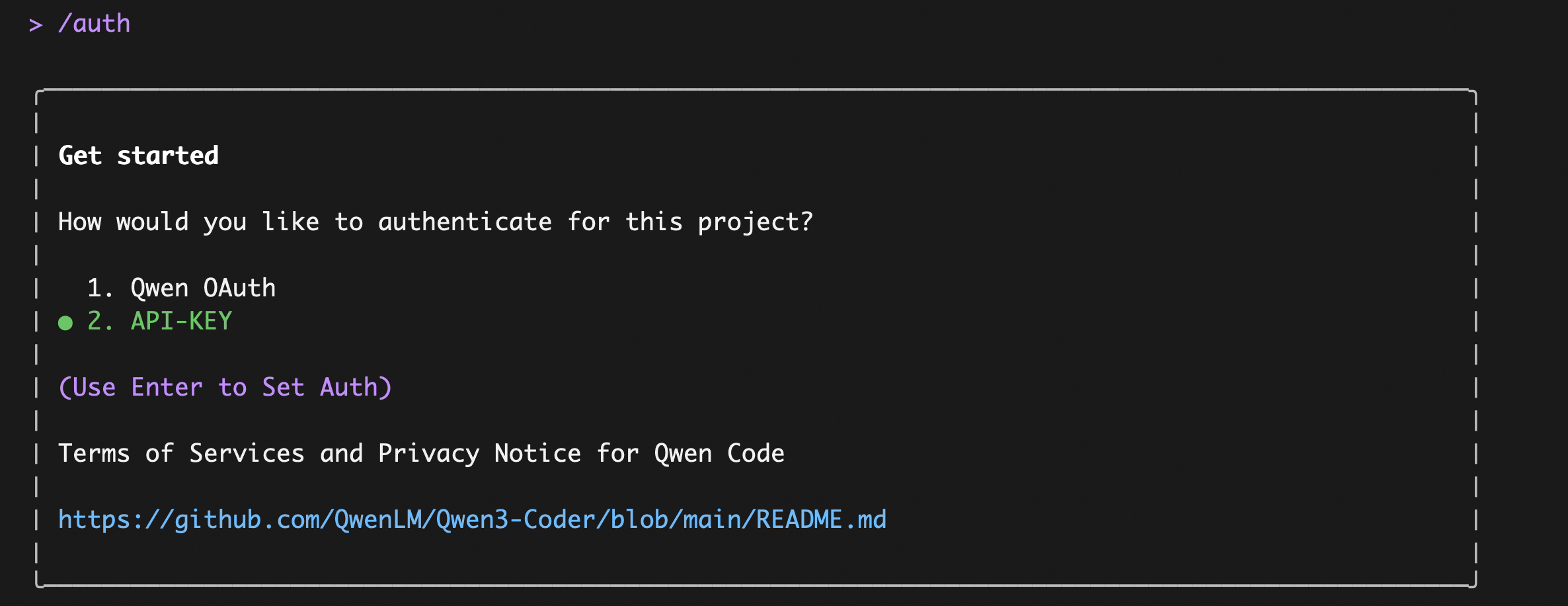
Enter qwen in the terminal to launch Qwen Code, then enter the /auth command and select API-KEY
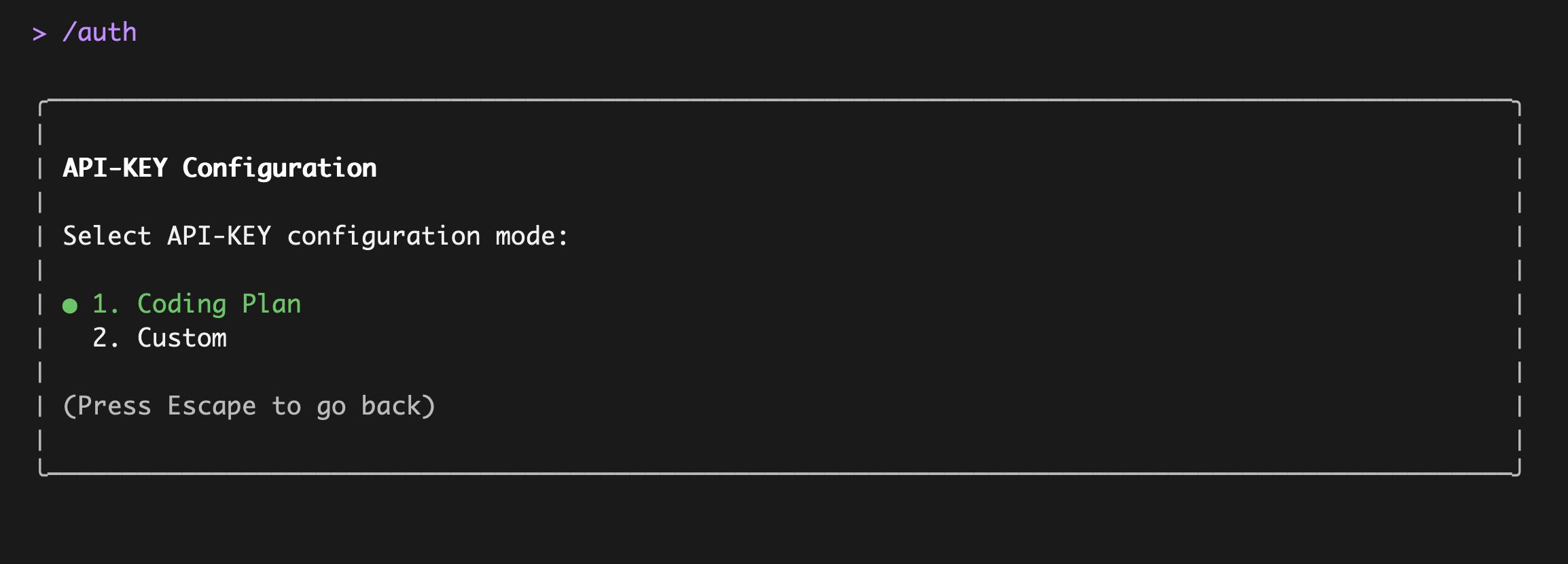
After entering, select Coding Plan:
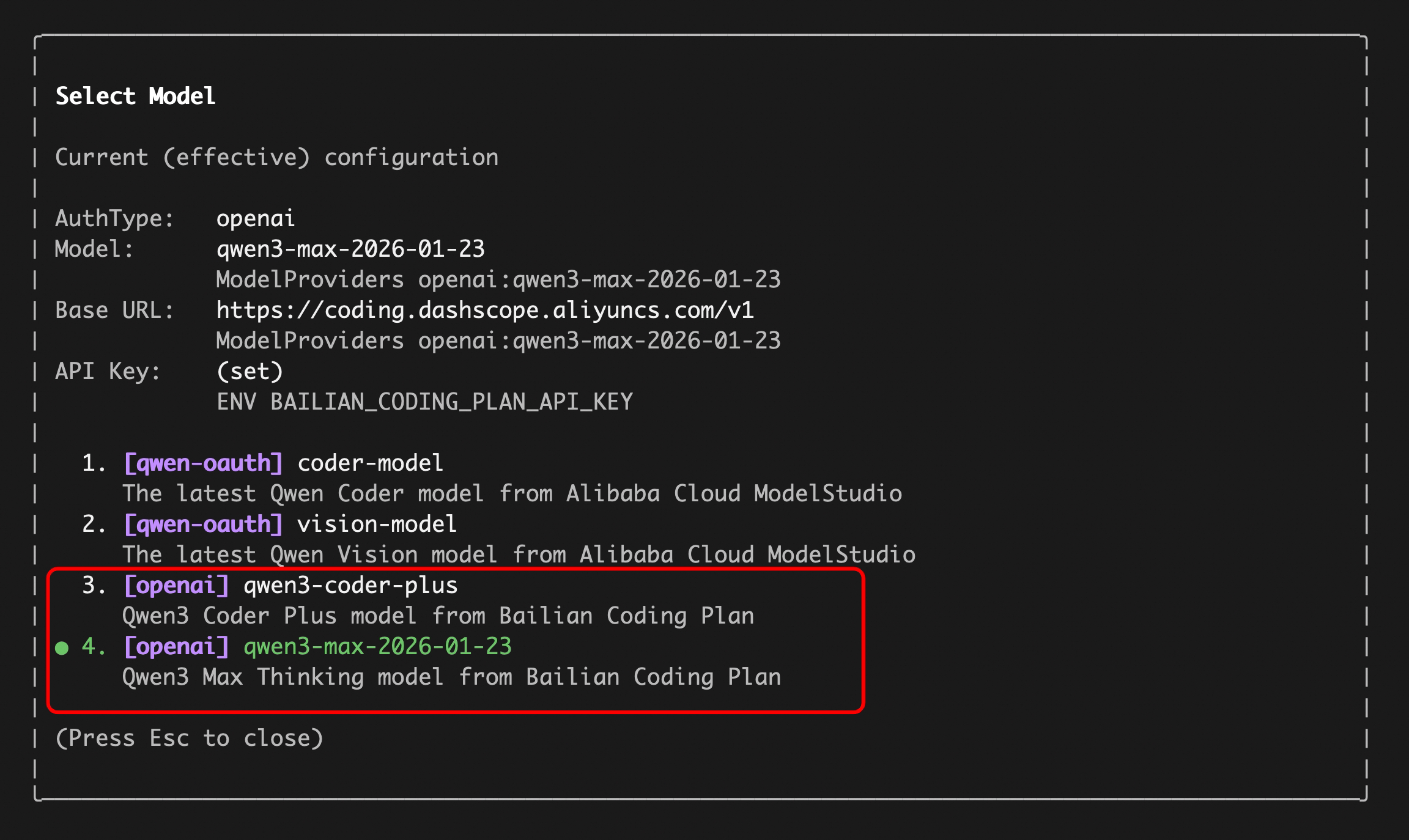
Enter your sk-sp-xxxxxxxxx key, then use the /model command to switch between all Bailian Coding Plan supported models:
Note
Coding Plan API key format is
sk-sp-xxxxx, which differs from standard Alibaba Cloud API keys.
- API key:
sk-sp-xxxxx- Base URL:
https://coding.dashscope.aliyuncs.com/v1
For more details about the Coding Plan, including subscription options and troubleshooting, see the full Coding Plan documentation.
Configure via settings.json modelProviders
You can add support for multiple models in the settings.json file and then use the /model command in Qwen Code to switch between them. The supported models are listed below:
"modelProviders": {
  "openai": [
    {
      "id": "qwen3-coder-plus",
      "name": "qwen3-coder-plus",
      "envKey": "OPENAI_API_KEY",
      "baseUrl": "https://dashscope.aliyuncs.com/compatible-mode/v1"
    },
    {
      "id": "qwen3-max",
      "name": "qwen3-max",
      "envKey": "OPENAI_API_KEY",
      "baseUrl": "https://dashscope.aliyuncs.com/compatible-mode/v1"
    }
  ]
}
Then enter the command below in your terminal to add your API key:
export OPENAI_API_KEY="your-coding-plan-api-key"
# Format: sk-sp-xxxxx
Direct Configuration via Qwen Code
After launching Qwen Code, directly say in conversation:
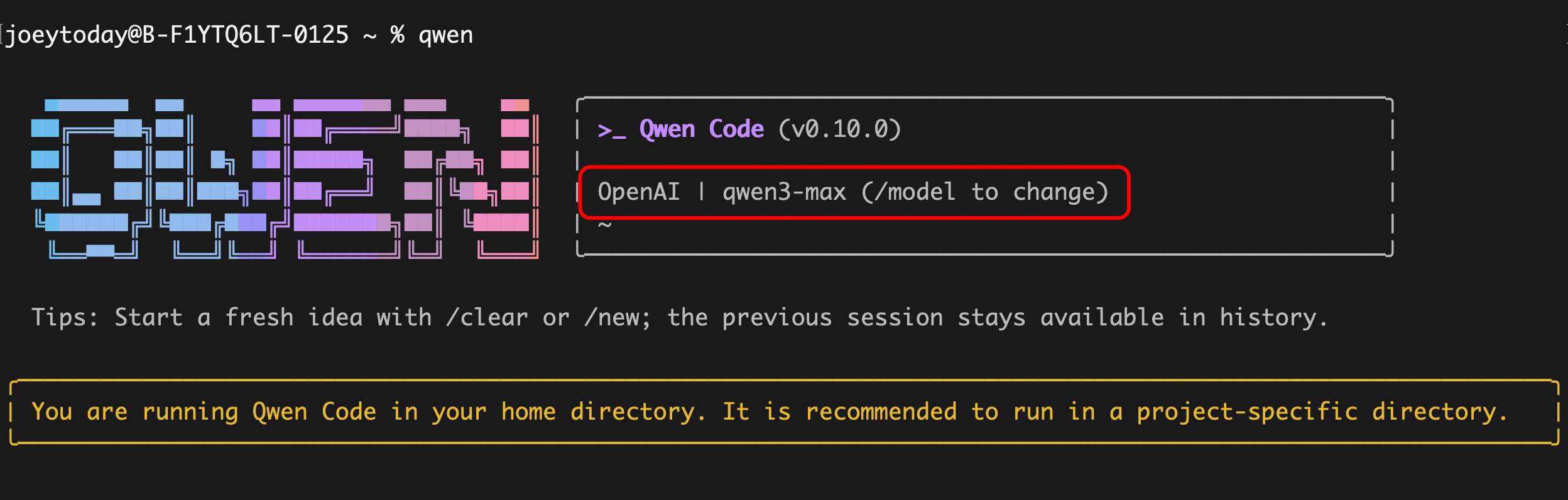
Help me configure a third-party API model, Bailian API is: sk-xxxxxxxxxx, model is: qwen3-max
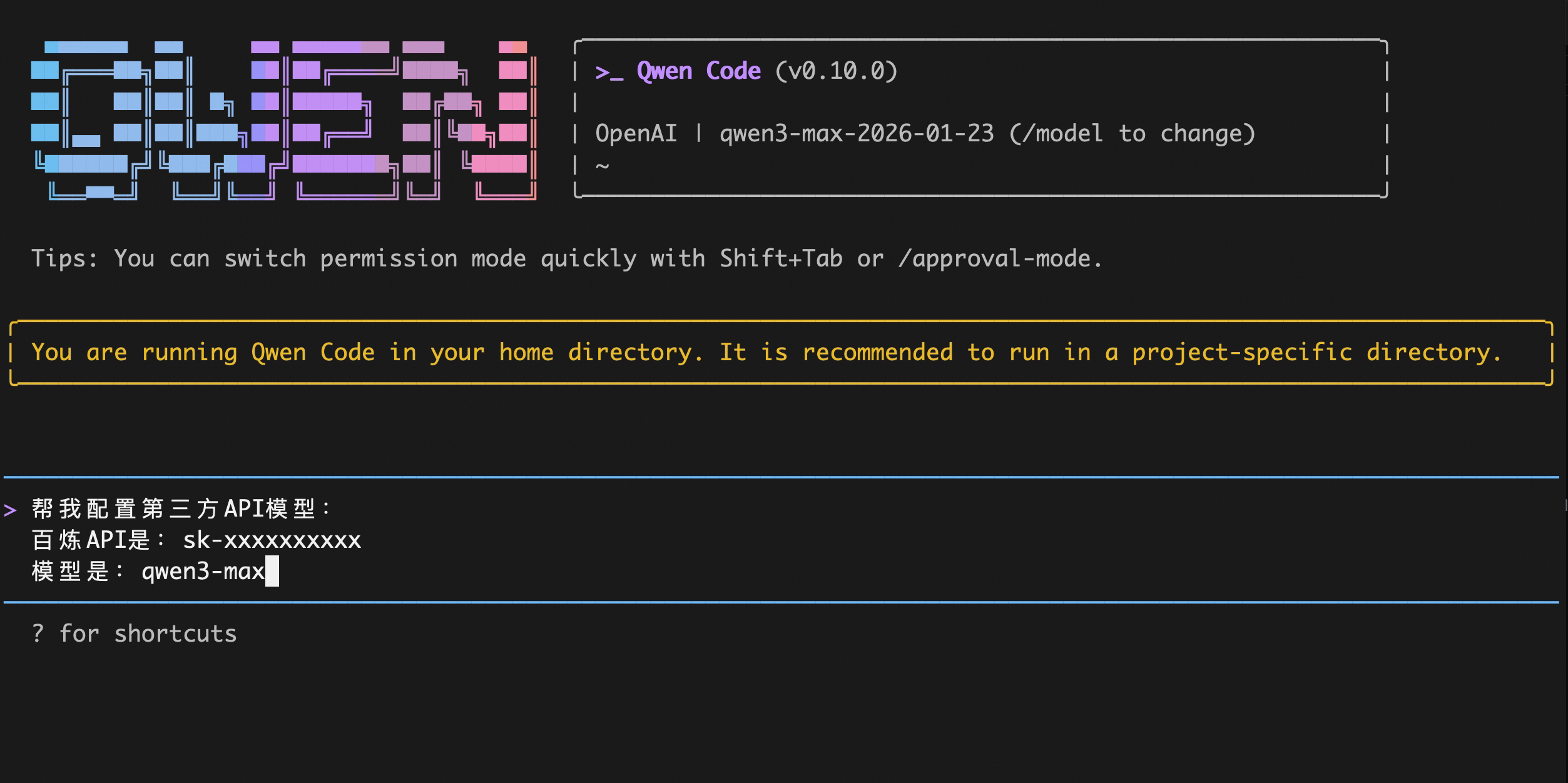
After restarting Qwen Code, the configuration is successful:
Configure via Environment Variables
Set these environment variables to use Coding Plan:
export OPENAI_API_KEY="your-coding-plan-api-key"
# Format: sk-sp-xxxxx
export OPENAI_BASE_URL="https://coding.dashscope.aliyuncs.com/v1"
export OPENAI_MODEL="qwen3-coder-plus"
Other OpenAI-compatible Providers
If you are using other providers (OpenAI, Azure, local LLMs, etc.), use the following configuration methods.
Configure via command-line arguments
# API key only
qwen-code --openai-api-key "your-api-key-here"

# Custom base URL (OpenAI-compatible endpoint)
qwen-code --openai-api-key "your-api-key-here" --openai-base-url "https://your-endpoint.com/v1"

# Custom model
qwen-code --openai-api-key "your-api-key-here" --model "gpt-4o-mini"
Configure via environment variables
You can set these in your shell profile, CI, or an .env file:
export OPENAI_API_KEY="your-api-key-here"
export OPENAI_BASE_URL="https://api.openai.com/v1" # optional
export OPENAI_MODEL="gpt-4o" # optional
Persisting env vars with .env / .qwen/.env
Qwen Code will auto-load environment variables from the first .env file it finds (variables are not merged across multiple files).
Search order:
- From the current directory, walking upward toward
/: .qwen/.env.env- If nothing is found, it falls back to your home directory:
~/.qwen/.env~/.env
.qwen/.env is recommended to keep Qwen Code variables isolated from other tools. Some variables (like DEBUG and DEBUG_MODE) are excluded from project .env files to avoid interfering with qwen-code behavior.
Examples:
# Project-specific settings (recommended)
mkdir -p .qwen
cat >> .qwen/.env <<'EOF'
OPENAI_API_KEY="your-api-key"
OPENAI_BASE_URL="https://api-inference.modelscope.cn/v1"
OPENAI_MODEL="Qwen/Qwen3-Coder-480B-A35B-Instruct"
EOF
# User-wide settings (available everywhere)
mkdir -p ~/.qwen
cat >> ~/.qwen/.env <<'EOF'
OPENAI_API_KEY="your-api-key"
OPENAI_BASE_URL="https://dashscope.aliyuncs.com/compatible-mode/v1"
OPENAI_MODEL="qwen3-coder-plus"
EOF
Switch authentication method (without restarting)
In the Qwen Code UI, run:
/auth
Non-interactive / headless environments (CI, SSH, containers)
In a non-interactive terminal you typically cannot complete the OAuth browser login flow.
Use the OpenAI-compatible API method via environment variables:
- Set at least
OPENAI_API_KEY. - Optionally set
OPENAI_BASE_URLandOPENAI_MODEL.
If none of these are set in a non-interactive session, Qwen Code will exit with an error.
Security notes
- Don’t commit API keys to version control.
- Prefer
.qwen/.envfor project-local secrets (and keep it out of git). - Treat your terminal output as sensitive if it prints credentials for verification.