 6d29268cbd
Rename high-impact skills to task-oriented names and move plugin-owned skills into their owning plugin folders.\n\nAlign renamed skill frontmatter with the official SKILL.md standard by keeping trigger language in name/description metadata, replacing the old create-skill wizard with build-skill, and updating browser, A0 connector, computer-use, CLI setup, and scheduler skill references.\n\nTighten the recurring cross-provider guidance gaps surfaced by the evidence sweeps: memory requests now avoid promptinclude-file routing, scheduler prompts distinguish cron schedules from planned ISO dates, document questions prefer document_query, skills_tool search/read_file usage is clearer, normal notifications set info/priority 10, and local/host text editors preserve patch intent.\n\nUpdate regression tests for the renamed skills, plugin ownership, prompt budget reality, and standard frontmatter shape.
8.4 KiB
A0 CLI Connector
A0 CLI connects your terminal to Agent Zero.
It is not a second agent. Agent Zero is still the one thinking, remembering, and using tools. A0 CLI is the doorway that lets Agent Zero work on the computer where the CLI is running.
Agent Zero lives in Docker because that is safer and easier to manage. A0 CLI is the intentional bridge for moments when you want Agent Zero to work with your real files, terminal, or browser on the host machine.
Agent Zero stays in Docker. A0 CLI installs on the host machine.
The same connector can also let Agent Zero use a Chrome-family browser on your computer.
Quick Install
macOS / Linux:
curl -LsSf https://cli.agent-zero.ai/install.sh | sh
Windows (PowerShell):
irm https://cli.agent-zero.ai/install.ps1 | iex
Run these on the host machine, not inside the Agent Zero container.
The installer handles the small Python helper it needs.
Open it and start working
- Make sure Agent Zero is already running.
- Launch A0 CLI on the host machine:
a0
- If Agent Zero is running on the same machine, A0 CLI will usually find it.
- If Agent Zero is somewhere else, enter its web address.
- Open or create a chat and confirm you can talk to Agent Zero from the host machine.
Note
If A0 CLI says connector support is missing, update Agent Zero first.
Connection picker
On launch, A0 CLI opens a host picker. If it finds Agent Zero on this machine, click Connect. If Agent Zero is somewhere else, click Enter URL manually and paste the address.

Useful launch options:
a0 --host http://localhost:32080
a0 --no-auto-connect
a0 --no-docker-discovery
You can also set the address before launching:
export AGENT_ZERO_HOST=http://localhost:32080
a0
If Remember this host is enabled, the CLI saves that address for next time.
The connected shell
After connecting, the shell shows the Agent Zero address, current project, model, local folder, Agent Zero workspace, and the message box.

Use the footer when your terminal supports function keys:
| Key | Action |
|---|---|
F3 |
Toggle host file read/write access for the active CLI session. |
F4 |
Toggle remote code execution through the active CLI session. |
F5 |
Clear the visible chat log. |
F6 |
Open the chat list. |
F7 |
Nudge the active agent run. |
F8 |
Pause the active agent run. |
Ctrl+C |
Exit. |
Ctrl+P |
Open the command palette. |
Ctrl+P is the best fallback when an IDE terminal or SSH client captures
function keys.

Slash commands
Type a slash command in the message box and press Enter. Most commands are also
available from Ctrl+P.
| Command | Use it for |
|---|---|
/new |
Create a new empty chat. |
/chats |
List previous chats. Add --project, --all-projects, or `--sort=updated |
/project |
Open the project menu, or switch directly with /project <name>. |
/profile |
Pick or set the active Agent Zero Core profile. |
/compact |
Compact the current chat after confirmation. |
/pause |
Pause the active run. |
/resume |
Resume a paused run. |
/nudge |
Nudge the active run. |
/presets |
Choose a model preset. |
/models |
Edit the active models. |
/browser |
Check or change Browser mode. |
/attach |
Attach local image files to the next message. Aliases: /image, /img. |
/keys |
Show or hide key and widget help. |
/disconnect |
Disconnect and return to the host connection flow. |
/help |
Print the available command list in the shell. |
/quit |
Disconnect and exit the CLI. |
Host Browser
Use this when you want Agent Zero to browse with a browser on your computer. This is useful when the page, login, or browser profile should stay on your machine.
Setup Checklist
- Keep A0 CLI connected to the Agent Zero chat.
- In Agent Zero Web UI, open Browser plugin settings and choose Bring Your Own Browser.
- If you want Agent Zero to use an already-open personal Chrome window, open that browser first.
- In that browser, go to
chrome://inspect/#remote-debugging. - Enable Allow remote debugging for this browser instance.

When Agent Zero performs its first Browser action against that host browser, Chrome asks for confirmation. Click Allow if you trust this Agent Zero instance and A0 CLI connection.

A0 CLI does not take over the browser while it is only checking status. Browser control starts when Agent Zero actually needs to use the browser.
Important
Remote debugging gives the connected app full control of that Chrome session, including access to saved data, cookies, site data, and navigation. Use it only with trusted Agent Zero instances and browser windows you intend the agent to control.
Browser Profiles
/browser profile
/browser profile chrome Default
/browser profile chrome-a0 Default
If your everyday Chrome window cannot be used, choose the separate A0 browser profile instead. It keeps its own cookies and sign-ins, so you may need to log in there once.
Choose Browser Mode
In Agent Zero Web UI, open Browser plugin settings and choose one of:
- Docker browser: use Agent Zero's built-in Docker browser.
- Bring Your Own Browser: use the browser on your computer through A0 CLI. If A0 CLI is not connected, Agent Zero will tell you instead of quietly using a different browser.
You can also find the Browser commands from the CLI command palette:
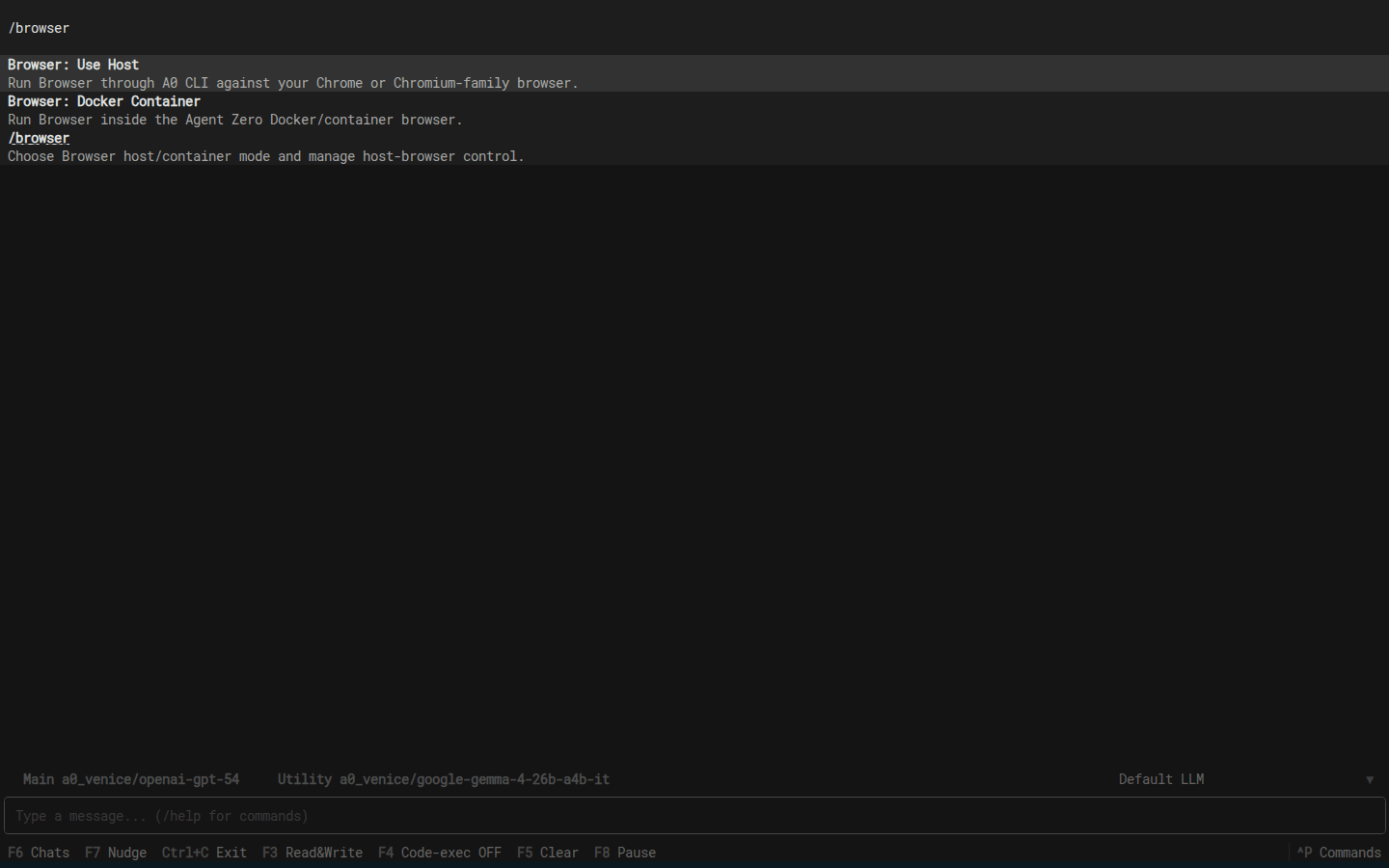
When Bring Your Own Browser is selected, the first browsing request asks A0 CLI to prepare the browser automatically. These commands are useful when you want to check or change the state yourself:
/browser status
/browser host on
/browser relaunch
/browser status shows which Browser mode is selected and whether your browser
is ready:

/browser host switches the active chat to Bring Your Own Browser mode:

Run /browser container to switch that chat back to Docker browser mode.
/browser privacy reminds users where the Browser content policy lives:

If the selected browser profile is already open in another window, close that
window and try again. You can also run /browser relaunch.
You do not need to install Chrome DevTools MCP for this. A0 CLI already includes what it needs to connect to the browser you approve.
Page Privacy
Browser settings decide what Agent Zero may do with page text and screenshots from your own browser:
- Local models only: use host-browser page content only with local models.
- Warn when using cloud: allow cloud models, but show a warning.
- Allow: allow without warning.
Note
The live Browser surface shows the Docker browser. When Agent Zero uses your host browser, results and screenshots appear in the chat, but the live Canvas is not a stream of your personal browser window.
Give this to another agent
If another agent is helping with setup, do not paste a whole checklist. Paste one line:
Set up the A0 CLI connector for Agent Zero on this machine using the setup-a0-cli Skill.
Troubleshooting
- Nothing appears locally: Enter the Agent Zero web address manually or export
AGENT_ZERO_HOST. - You tried to install from inside Docker: A0 CLI belongs on the host machine. Agent Zero stays in Docker.
- Function keys do nothing: Some terminals and IDEs capture function keys. Use
Ctrl+P. - A0 CLI says connector support is missing: Update Agent Zero.
- Host browser says repair is needed: Run
/browser repair. - Host browser waits for relaunch: Close the selected Chrome, Edge, or Chromium profile and run
/browser relaunch.