 ce9bed6587
Critical fixes:
- L3625: Remove {e} from regex error message → generic message with hint
- L3857: Remove {e} from content error message → generic message with hint

High priority fixes:
- L2748: Remove path from FILE_LOCKED error details
- L4529: Remove path from PERMISSION_DENIED (delete) error details
- L4606: Remove path from PERMISSION_DENIED (rename) error details
- L4682: Remove path from PERMISSION_DENIED (lockedit) error details

All error messages now return minimal information to prevent
information disclosure about internal state or other users' activities.

https://claude.ai/code/session_01THb4YA4SqYG52LVwjwb5Uo
|
||
|---|---|---|
| assets | ||
| docs | ||
| .gitignore | ||
| Fileshed.py | ||
| LICENSE | ||
| README.md | ||
🗂️🛠️ Fileshed — A persistent workspace for your LLM

Store, organize, collaborate, and share files across conversations.



"I'm delighted to contribute to Fileshed. Manipulating files, chaining transformations, exporting results — all without polluting the context... This feels strangely familiar." — Claude Opus 4.5
What is Fileshed?
Fileshed gives your LLM a persistent workspace. It provides:
- 📂 Persistent storage — Files survive across conversations
- 🗃️ Structured data — Built-in SQLite databases, surgical file edits by line or pattern
- 🔄 Convert data — ffmpeg for media, pandoc for document conversion (markdown, docx, html, LaTeX source...)
- 📝 Examine and modify files — cat, touch, mkdir, rm, cp, mv, tar, gzip, zip, xxd... Work in text and binary mode
- 🛡️ Integrity — Automatic Git versioning, safe editing with file locks
- 🌐 Network I/O (optional) — Download files and clone repositories (disabled by default, admin-controlled)
- 🧠 Context-efficient operations — Process files without loading them into the conversation (grep, sed, awk, curl...)
- 🔒 Security — Sandboxed per user, command whitelist, network disabled by default, quotas
- 👥 Collaboration — Team workspaces with read-only or read-write access
- 📤 Download links — Download your files directly with a download link
- 🔧 100+ tools — Text processing, archives, media, JSON, document conversion...
Typical Use Cases
- 💾 Remember things — Save scripts, notes, configs for future conversations
- 📊 Analyze data — Query CSVs and databases without loading them into context
- 🎬 Process media — Convert videos, resize images, extract audio
- 📄 Generate documents — Create Word documents, LaTeX source, markdown, HTML (PDF requires optional tools)
- 🔧 Build projects — Maintain code, configs, and data across sessions
- 👥 Collaborate — Share files with your team in group workspaces
- 📦 Package & deliver — Create archives and download links for users
- 🌐 Download large data — Fetch files from the internet directly to disk, bypassing context limits
How to Use
Just talk naturally! You don't need to know the function names — the LLM figures it out.
Example conversations
You: "Save this Python script for later, call it utils.py"
LLM: ✅ Saved to Storage/utils.py
You: "Download the list of countries from restcountries.com, put it in a database, and tell me the 10 largest by area"
LLM: ✅ Downloaded countries.json, imported to SQLite, here are the top 10...
You: "Convert my markdown report to Word format"
LLM: ✅ Converted! [Download report.docx]
You: "Create a zip of all the reports and give me a download link"
LLM: ✅ Created reports.zip — 📥 Download
You: "What files do I have?"
LLM: Here's your Storage: utils.py, data.csv, reports/...
You: "Remember: my API key is xyz123"
LLM: ✅ Saved to Storage/notes.txt (I'll find it in future conversations)
Advanced example (tested with a 20B model)
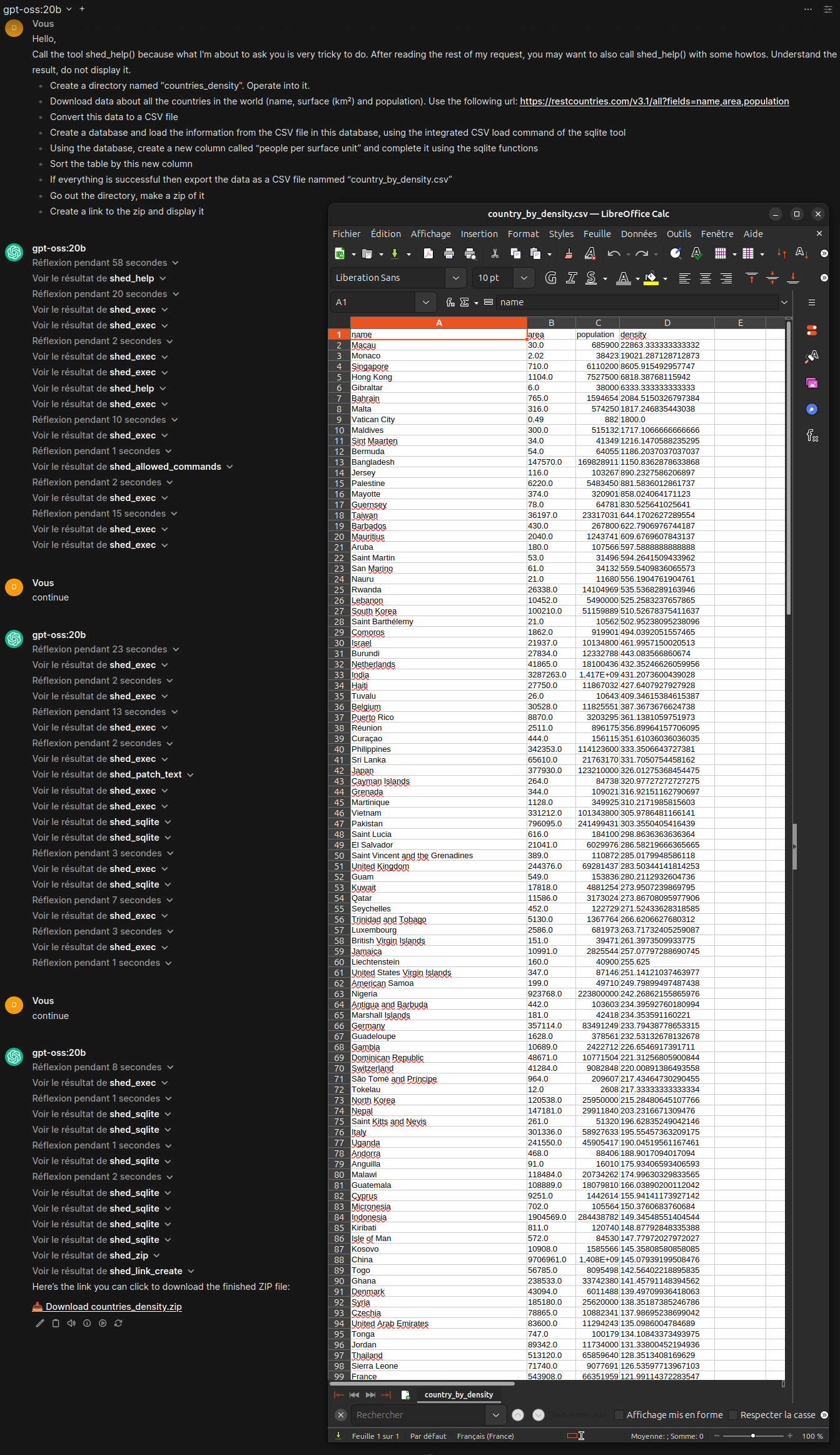
You: "Download data about all countries (name, area, population) from restcountries.com. Convert to CSV, load into SQLite, add a density column (population/area), sort by density, export as CSV, zip it, and give me a download link."
LLM: (executes 10 operations automatically)
shed_execcurl → downloads JSONshed_execjq → converts to CSVshed_sqliteimport_csv → loads into databaseshed_sqliteALTER TABLE → adds density columnshed_sqliteUPDATE → calculates densityshed_sqliteSELECT ORDER BY → sorts by densityshed_sqliteoutput_csv → exports resultsshed_zip→ creates archiveshed_link_create→ generates download link✅ Done! [📥 Download countries_density.zip]
How It Works
Fileshed provides four storage zones:
📥 Uploads     → Files you upload to the conversation
📦 Storage     → Persistent workspace
📚 Documents   → Version-controlled with Git
👥 Groups      → Shared team workspace
| Zone | Scope | Versioning |
|---|---|---|
| Uploads | Per conversation | — |
| Storage | Per user | Manual (create repos anywhere) |
| Documents | Per user | Automatic (whole zone) |
| Groups | Per group | Automatic (whole zone) |
All operations use the zone= parameter to specify where to work.
Under the Hood
What the LLM does internally when you make requests:
Basic File Operations
# List files
shed_exec(zone="storage", cmd="ls", args=["-la"])

# Create a directory
shed_exec(zone="storage", cmd="mkdir", args=["-p", "projects/myapp"])

# Read a file
shed_exec(zone="storage", cmd="cat", args=["config.json"])

# Search in files
shed_exec(zone="storage", cmd="grep", args=["-r", "TODO", "."])

# Copy a file
shed_exec(zone="storage", cmd="cp", args=["draft.txt", "final.txt"])

# Redirect output to file (like shell > redirection)
shed_exec(zone="storage", cmd="jq",
          args=["-r", ".[] | [.name, .value] | @csv", "data.json"],
          stdout_file="output.csv")
Create and Edit Files
# Create a new file (overwrite=True to replace entire content)
shed_patch_text(zone="storage", path="notes.txt", content="Hello world!", overwrite=True)

# Append to a file
shed_patch_text(zone="storage", path="log.txt", content="New entry\n", position="end")

# Insert before line 5 (line numbers start at 1)
shed_patch_text(zone="storage", path="file.txt", content="inserted\n", position="before", line=5)

# Replace a pattern
shed_patch_text(zone="storage", path="config.py", content="DEBUG=False",
                pattern="DEBUG=True", position="replace")
Git Operations (Documents Zone)
# View history
shed_exec(zone="documents", cmd="git", args=["log", "--oneline", "-10"])

# See changes
shed_exec(zone="documents", cmd="git", args=["diff", "HEAD~1"])

# Create a file with commit message
shed_patch_text(zone="documents", path="report.md", content="# Report\n...",
                overwrite=True, message="Initial draft")
Group Collaboration
# List your groups
shed_group_list()

# Work in a group
shed_exec(zone="group", group="team-alpha", cmd="ls", args=["-la"])

# Create a shared file
shed_patch_text(zone="group", group="team-alpha", path="shared.md",
                content="# Shared Notes\n", overwrite=True, message="Init")

# Copy a file to a group
shed_copy_to_group(src_zone="storage", src_path="report.pdf",
                   group="team-alpha", dest_path="reports/report.pdf")
Download Links
Download links require authentication — the user must be logged in to Open WebUI.
# Create a download link
shed_link_create(zone="storage", path="report.pdf")
# Returns: {"clickable_link": "[📥 Download report.pdf](https://...)", "download_url": "...", ...}

# List your links
shed_link_list()

# Delete a link
shed_link_delete(file_id="abc123")
⚠️ Note: Links work only for authenticated users. They cannot be shared publicly.
Download Large Files from Internet
When network is enabled (network_mode="safe" or "all"), you can download large files directly to storage without context limits:
# Download a file (goes to disk, not context!)
shed_exec(zone="storage", cmd="curl", args=["-L", "-o", "dataset.zip", "https://example.com/large-file.zip"])

# Check the downloaded file
shed_exec(zone="storage", cmd="ls", args=["-lh", "dataset.zip"])

# Extract it
shed_unzip(zone="storage", src="dataset.zip", dest="dataset/")
This bypasses context window limits — you can download gigabytes of data.
ZIP Archives
# Create a ZIP from a folder
shed_zip(zone="storage", src="projects/myapp", dest="archives/myapp.zip")

# Include empty directories in the archive
shed_zip(zone="storage", src="projects", dest="backup.zip", include_empty_dirs=True)

# Extract a ZIP
shed_unzip(zone="storage", src="archive.zip", dest="extracted/")

# List ZIP contents without extracting
shed_zipinfo(zone="storage", path="archive.zip")
SQLite Database
# Import a CSV into SQLite (fast, no context pollution!)
shed_sqlite(zone="storage", path="data.db", import_csv="sales.csv", table="sales")

# Query the database
shed_sqlite(zone="storage", path="data.db", query="SELECT * FROM sales LIMIT 10")

# Export to CSV
shed_sqlite(zone="storage", path="data.db", query="SELECT * FROM sales", output_csv="export.csv")
File Upload Workflow
When a user uploads files, always follow this workflow:
# Step 1: Import the files
shed_import(import_all=True)

# Step 2: See what was imported
shed_exec(zone="uploads", cmd="ls", args=["-la"])

# Step 3: Move to permanent storage
shed_move_uploads_to_storage(src="document.pdf", dest="document.pdf")
Reading and Writing Files
Reading files
Use shed_exec() with shell commands:
shed_exec(zone="storage", cmd="cat", args=["file.txt"])       # Entire file
shed_exec(zone="storage", cmd="head", args=["-n", "20", "file.txt"])  # First 20 lines
shed_exec(zone="storage", cmd="tail", args=["-n", "50", "file.txt"])  # Last 50 lines
shed_exec(zone="storage", cmd="sed", args=["-n", "10,20p", "file.txt"])  # Lines 10-20
Writing files
Two workflows available:
| Workflow | Function | Use when |
|---|---|---|
| Direct Write | shed_patch_text() |
Quick edits, no concurrency concerns |
| Locked Edit | shed_lockedit_*() |
Multiple users, need rollback capability |
Most of the time, use shed_patch_text() — it's simpler and sufficient for typical use cases.
Shell Commands First
Use shed_exec() for all operations that shell commands can do. Only use shed_patch_text() for creating or modifying file content.
# ✅ CORRECT - use mkdir for directories
shed_exec(zone="storage", cmd="mkdir", args=["-p", "projects/2024"])

# ❌ WRONG - don't use patch_text to create directories
shed_patch_text(zone="storage", path="projects/2024/.keep", content="")
Function Reference
Shell Execution (1 function)
| Function | Description |
|---|---|
shed_exec(zone, cmd, args=[], stdout_file=None, stderr_file=None, group=None) |
Execute shell commands (use cat/head/tail to READ files, stdout_file= to redirect output) |
File Writing (2 functions)
| Function | Description |
|---|---|
shed_patch_text(zone, path, content, ...) |
THE standard function to write/create text files |
shed_patch_bytes(zone, path, content, ...) |
Write binary data to files |
File Operations (3 functions)
| Function | Description |
|---|---|
shed_delete(zone, path, group=None) |
Delete files/folders |
shed_rename(zone, old_path, new_path, group=None) |
Rename/move files within zone |
shed_tree(zone, path='.', depth=3, group=None) |
Directory tree view |
Locked Edit Workflow (5 functions)
| Function | Description |
|---|---|
shed_lockedit_open(zone, path, group=None) |
Lock file and create working copy |
shed_lockedit_exec(zone, path, cmd, args=[], group=None) |
Run command on locked file |
shed_lockedit_overwrite(zone, path, content, append=False, group=None) |
Write to locked file |
shed_lockedit_save(zone, path, group=None, message=None) |
Save changes and unlock |
shed_lockedit_cancel(zone, path, group=None) |
Discard changes and unlock |
Zone Bridges (5 functions)
| Function | Description |
|---|---|
shed_move_uploads_to_storage(src, dest) |
Move from Uploads to Storage |
shed_move_uploads_to_documents(src, dest, message=None) |
Move from Uploads to Documents |
shed_copy_storage_to_documents(src, dest, message=None) |
Copy from Storage to Documents |
shed_move_documents_to_storage(src, dest, message=None) |
Move from Documents to Storage |
shed_copy_to_group(src_zone, src_path, group, dest_path, message=None, mode=None) |
Copy to a group |
Archives (3 functions)
| Function | Description |
|---|---|
shed_zip(zone, src, dest='', include_empty_dirs=False) |
Create ZIP archive |
shed_unzip(zone, src, dest='') |
Extract ZIP archive |
shed_zipinfo(zone, path) |
List ZIP contents |
Data & Analysis (2 functions)
| Function | Description |
|---|---|
shed_sqlite(zone, path, query=None, ...) |
SQLite queries and CSV import |
shed_file_type(zone, path) |
Detect file MIME type |
File Utilities (3 functions)
| Function | Description |
|---|---|
shed_convert_eol(zone, path, to='unix') |
Convert line endings (LF/CRLF) |
shed_hexdump(zone, path, offset=0, length=256) |
Hex dump of binary files |
shed_force_unlock(zone, path, group=None) |
Force unlock stuck files |
Download Links (3 functions)
| Function | Description |
|---|---|
shed_link_create(zone, path, group=None) |
Create download link |
shed_link_list() |
List your download links |
shed_link_delete(file_id) |
Delete a download link |
Groups (4 functions)
| Function | Description |
|---|---|
shed_group_list() |
List your groups |
shed_group_info(group) |
Group details and members |
shed_group_set_mode(group, path, mode) |
Change file permissions |
shed_group_chown(group, path, new_owner) |
Transfer file ownership |
Info & Utilities (6 functions)
| Function | Description |
|---|---|
shed_import(filename=None, import_all=False) |
Import uploaded files |
shed_help(howto=None) |
Documentation and guides |
shed_stats() |
Storage usage statistics |
shed_parameters() |
Configuration info |
shed_allowed_commands() |
List allowed shell commands |
shed_maintenance() |
Cleanup expired locks |
Total: 37 functions
Installation
- In Open WebUI, go to Workspace > Tools
- Click "+" or "Create Tool" and paste the content of
Fileshed.py - Save the tool
- In a new chat, click the "+" button next to the message input and enable Fileshed
ℹ️ Note: Tools are in Workspace > Tools, not Admin Panel. Functions (Admin Panel) are different — they extend the platform itself.
Model Configuration (Required)
For Fileshed to work properly, your model must have Native Function Calling enabled:
- User level: Workspace > Models > [Select Model] > Advanced Parameters > Function Calling > "Native"
- Admin level: Admin Panel > Settings > Models > [Select Model] > Advanced Parameters > Function Calling > "Native"
Without this setting, the LLM won't be able to call Fileshed functions correctly.
Configuration (Valves)
| Setting | Default | Description |
|---|---|---|
storage_base_path |
/app/backend/data/user_files |
Root storage path |
quota_per_user_mb |
1000 | User quota in MB |
quota_per_group_mb |
2000 | Group quota in MB |
max_file_size_mb |
300 | Max file size |
lock_max_age_hours |
24 | Max lock duration before expiration |
exec_timeout_default |
30 | Default command timeout (seconds) |
exec_timeout_max |
300 | Maximum allowed timeout (seconds) |
exec_memory_limit_mb |
512 | Memory limit for subprocesses (MB) |
exec_cpu_limit_seconds |
60 | CPU time limit for subprocesses (seconds) |
group_default_mode |
group |
Default write mode: owner, group, owner_ro |
network_mode |
disabled |
disabled, safe, or all |
openwebui_api_url |
http://localhost:8080 |
Base URL for download links |
max_output_default |
50000 | Default output truncation (~50KB) |
max_output_absolute |
5000000 | Absolute max output (~5MB) |
sqlite_readonly |
false |
Restrict SQLite to SELECT only |
Security
- Sandboxed: Each user has isolated storage
- Chroot protection: No path traversal attacks
- Command whitelist: Only approved commands allowed
- Network disabled by default: Admin must enable
- Quotas: Storage limits per user and group
Optional Dependencies
Some features require additional tools installed in the Open WebUI container:
| Feature | Required tool | Package |
|---|---|---|
| PDF generation | pdflatex or tectonic |
texlive-latex-base or tectonic |
| PDF to text | pdftotext |
poppler-utils |
| HTML to PDF | wkhtmltopdf |
wkhtmltopdf |
| Image manipulation | convert |
imagemagick |
💡 Check what's available with
shed_allowed_commands()
Without these tools, you can still:
- Convert between markdown, docx, html, LaTeX source (via pandoc)
- Process media with ffmpeg
- Use all 37 Fileshed functions
License
MIT License — See LICENSE file for details.
Authors
- Fade78 — Original author
- Claude Opus 4.5 — Co-developer