
Automate Cloudflare Tunnels with Docker Labels
Go from container to publicly-secured URL in seconds. No manual Cloudflare dashboard configuration required.






🌐 Website ·
📚 Documentation ·
🐛 Report a Bug ·
❤️ Sponsor
---
## Introduction
DockFlare is a powerful, self-hosted ingress controller that simplifies Cloudflare Tunnel and Zero Trust management. It uses Docker labels for automated configuration while providing a robust web UI for manual service definitions and policy overrides.
It enables secure, hassle-free public access to both Dockerized and non-Dockerized applications with minimal direct interaction with Cloudflare, making it the perfect tool for centralizing and streamlining your access management.
### ✨ What's New in DockFlare 3.0: Multi-Server & Agent Release
DockFlare 3.0 elevates the project from a single-node helper to a distributed fleet orchestrator.
- **DockFlare Agent**: Deploy the lightweight agent next to workloads on any host. Agents stream container events, maintain their own tunnels, and obey commands from the master.
- **Fleet Management UI**: A dedicated *Agents* page lets you enrol nodes with API keys, assign tunnels, monitor health, and trigger actions without touching the CLI.
- **Security Hardening**: Master API calls now require an explicit master key that is revealed on demand, agent tokens are revocable, and sensitive setup routes stay locked after onboarding. The DockFlare Agent container now runs as the unprivileged `dockflare` user (UID/GID 65532) and the reference compose stack proxies Docker access through `tecnativa/docker-socket-proxy` for least-privilege isolation.
- **Redis Backplane**: The master now uses Redis for caching, queue fan-out, and cross-process signalling—ready for future scaling.
- **Full Backup & Restore**: Download a complete, timestamped archive of your DockFlare instance (including encrypted credentials and agent keys) and restore it via the UI to rebuild a master in minutes.
- **Documentation Refresh**: New guides cover the master/agent architecture, configuration tips, and upgrade considerations.
## Getting Started & Documentation
For comprehensive documentation, please refer to the official project website:
- **[Quick Start Guide](https://dockflare.app/docs)** - Step-by-step guide to get up and running.
- **[Label Reference](https://dockflare.app/docs/container-labels)** - Detailed information on all available Docker labels.
- **[Advanced Configuration](https://dockflare.app/docs/managing-dns-zones)** - Details on multi-zone setups, external mode, and more.
### Prerequisites
Before you begin, ensure you have the following:
- Docker & Docker Compose installed.
- A Redis instance (the quick-start stack below runs one for you).
- A Cloudflare Account.
- Your **Cloudflare Account ID**.
- The **Zone ID** for the domain you wish to use.
- A **Cloudflare API Token** with the following permissions:
- `Account:Cloudflare Tunnel:Edit`
- `Account:Account Settings:Read`
- `Account:Access: Apps and Policies:Edit`
- `Zone:Zone:Read`
- `Zone:DNS:Edit`

🚀 Quick Start Docker Compose
1. **Create `docker-compose.yml`**:
```yaml
version: '3.8'
services:
docker-socket-proxy:
image: tecnativa/docker-socket-proxy:v0.4.1
container_name: docker-socket-proxy
restart: unless-stopped
environment:
- DOCKER_HOST=unix:///var/run/docker.sock
- CONTAINERS=1
- EVENTS=1
- NETWORKS=1
- IMAGES=1
- POST=1
- PING=1
- INFO=1
- EXEC=1
volumes:
- /var/run/docker.sock:/var/run/docker.sock
networks:
- dockflare-internal
dockflare-init:
image: alpine:3.20
command: ["sh", "-c", "chown -R ${DOCKFLARE_UID:-65532}:${DOCKFLARE_GID:-65532} /app/data"]
volumes:
- dockflare_data:/app/data
networks:
- dockflare-internal
restart: "no"
dockflare:
image: alplat/dockflare:stable
container_name: dockflare
restart: unless-stopped
ports:
- "5000:5000"
volumes:
- dockflare_data:/app/data
environment:
- REDIS_URL=redis://redis:6379/0
- REDIS_DB_INDEX=0 # Optional: specify Redis database index (0-15) for isolation from other containers
- DOCKER_HOST=tcp://docker-socket-proxy:2375
depends_on:
docker-socket-proxy:
condition: service_started
dockflare-init:
condition: service_completed_successfully
redis:
condition: service_started
networks:
- cloudflare-net
- dockflare-internal
redis:
image: redis:7-alpine
container_name: dockflare-redis
restart: unless-stopped
command: ["redis-server", "--save", "", "--appendonly", "no"]
volumes:
- dockflare_redis:/data
networks:
- dockflare-internal
volumes:
dockflare_data:
dockflare_redis:
networks:
cloudflare-net:
name: cloudflare-net
external: true
dockflare-internal:
name: dockflare-internal
```
2. **Run DockFlare**:
```bash
docker compose up -d
```
3. **Complete the Pre-Flight Setup**: Open `http://your-server-ip:5000` in your browser. You will be guided through a one-time setup wizard to enter your Cloudflare credentials and create a password for the UI.
4. **For Existing Users**: If you are upgrading, DockFlare will detect your old `.env` file and automatically guide you through a quick migration process.
The master now runs as the unprivileged `dockflare` user (UID/GID 65532) and only talks to Docker through the bundled socket proxy. If you bind-mount a host directory instead of using the named volume above, make sure it is writable by that UID/GID or adjust the `DOCKFLARE_UID`/`DOCKFLARE_GID` build args.
💡 *Need to manage workloads on additional hosts?* Deploy the [DockFlare Agent](https://github.com/ChrispyBacon-dev/DockFlare-Agent-prd) next to your containers, enrol it from the master UI, and let DockFlare orchestrate the tunnels for you. Both the master and agent images run as the non-root `dockflare` user by default, so align your volume permissions or override the build args if required. A full guide is available in the new [Multi-Server Agent](dockflare/app/templates/docs/Multi-Server-Agent.md) documentation.
## 🏷️ How It Works & Labeling Containers
DockFlare's power comes from its flexible, layered approach to configuration.
- **Access Groups First (Recommended)**: The easiest and most maintainable way to secure services is to create an **Access Group** in the UI and apply it with a single label.
- **Individual Labels for One-Offs**: For services that don't fit a group, you can still use individual `dockflare.access.*` labels for initial configuration.
- **UI for Dynamic Overrides**: The Web UI can override the access policy for any service, whether it was configured by a group or by individual labels. UI changes are persistent and stored in the encrypted `dockflare_config.dat` file.
- **DNS Zone Auto-Detection**: Starting with v3.0, DockFlare automatically infers the correct Cloudflare zone from each hostname. You only need `dockflare.zonename` when intentionally sending a record to a different zone.
📝 Labeling Your Containers (Examples)
#### 1. Recommended Method: Using an Access Group
Assuming you created an Access Group with the ID `nas-family` in the UI:
```yaml
services:
picoshare:
image: mtlynch/picoshare
labels:
- "dockflare.enable=true"
- "dockflare.hostname=files.example.com"
- "dockflare.service=http://picoshare:8080"
# Apply the entire policy with one label:
- "dockflare.access.group=nas-family"
```
#### 2. Alternative Method: Using Individual Labels
For a service with a unique, one-off policy:
```yaml
services:
my-service:
image: nginx:latest
labels:
- "dockflare.enable=true"
- "dockflare.hostname=my-service.example.com"
- "dockflare.service=http://my-service:80"
# Optional individual labels for a one-off policy
- "dockflare.access.policy=authenticate"
- "dockflare.access.allowed_idps=YOUR_IDP_UUID_HERE"
```
🛡️ All Access Policy Labels (for one-off configs)
Use these labels only when **not** using `dockflare.access.group`.
| Label | Description | Default | Example |
| :--- | :--- | :--- | :--- |
| `dockflare.access.policy` | Type: `bypass` (public app), `authenticate` (IdP login), `default_tld` (inherits from `*.domain.com` policy). If unset, service is public (no Access App). | (None/Public) | `dockflare.access.policy="authenticate"` |
| `dockflare.access.name` | Custom name for the Cloudflare Access Application. | `DockFlare-{hostname}` | `dockflare.access.name="My Web App Access"` |
| `dockflare.access.session_duration` | Session duration (e.g., `24h`, `30m`). | `24h` | `dockflare.access.session_duration="1h"` |
| `dockflare.access.custom_rules` | JSON string array of [Cloudflare Access Policy rules](https://developers.cloudflare.com/api/operations/access-policies-create-an-access-policy). Overrides basic `access.policy` decisions. | (None) | `'...=[{"email":{"email":"user@example.com"},"action":"allow"},{"action":"block"}]'` |
| ... | *Other `access.*` labels for launcher visibility, IdPs, etc. are also available.* | | |
## Known Issues
- Running Cloudflare WARP locally (for example on macOS) can block the managed `cloudflared` container from establishing a tunnel, resulting in repeated handshake failures and missing `cert.pem` errors. Disable WARP before testing DockFlare on the same host.
- Deleting the DockFlare data volume clears stored agent API keys. Generate new keys and re-enroll agents after a reset; stale keys will be refused.
## License
DockFlare is open-source software licensed under the [GPL-3.0 license](LICENSE.MD).
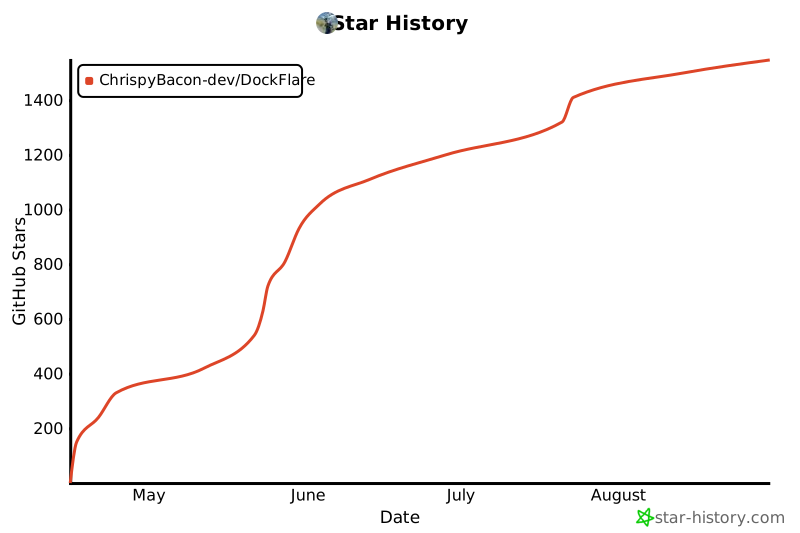
## Star History
[](https://www.star-history.com/#ChrispyBacon-dev/DockFlare&Date)